Can WordPress take payment for an online appointment?
Yes. A booking plugin can charge when the customer books, then send them a video link once the payment clears. In Appointure you set a price on the service, choose how much to collect up front, and set the service’s location to Zoom or Google Meet. Each paid booking then gets its own meeting.
This isn’t unusual. Most booking plugins offer online payment and video links in some form, and they differ mainly in which plan the features sit on. Our comparison of WordPress booking plugins sets them side by side. What follows is how it works in Appointure, including the awkward parts.
What do you need before you start?
Three accounts, depending on what you want. You only need the ones for the features you use.
- Stripe, for taking payment. Online payment in Appointure is Stripe only. You paste your keys under Settings, Payments, and add the webhook URL shown there to your Stripe Dashboard so Stripe can tell the plugin when a payment has gone through.
- A Zoom app, for Zoom links. Create a Server-to-Server OAuth app in the Zoom Marketplace, then paste its Account ID, Client ID and Client secret under Settings, Integrations.
- A Google Cloud OAuth connection, for Google Meet. Meet links come from the Google Calendar connection, so connecting one Google account covers both calendar sync and Meet.
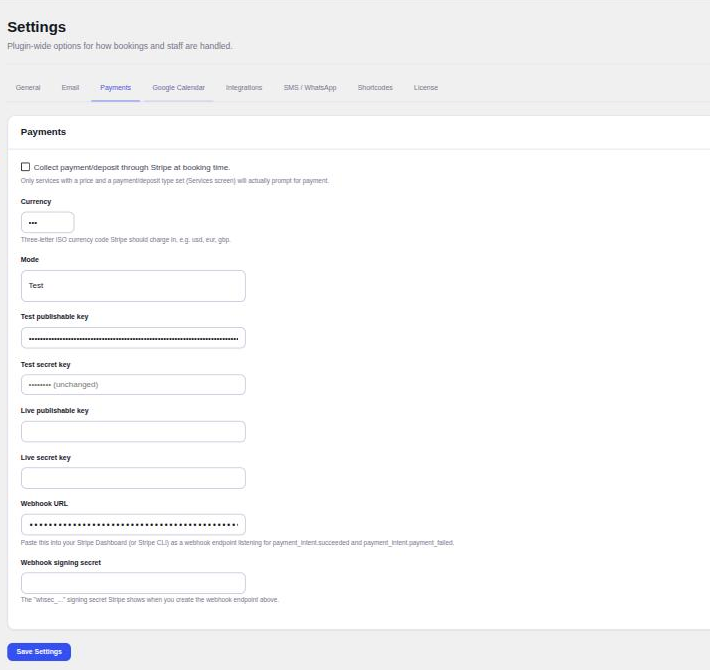
Set Stripe up first and take a test payment before you touch Zoom or Meet. It is much easier to find a mistake when only one thing is new.
How do you charge for a Zoom or Meet appointment?
Open the service under Appointments, Services. Three fields do the work: the price, the payment option and the location.
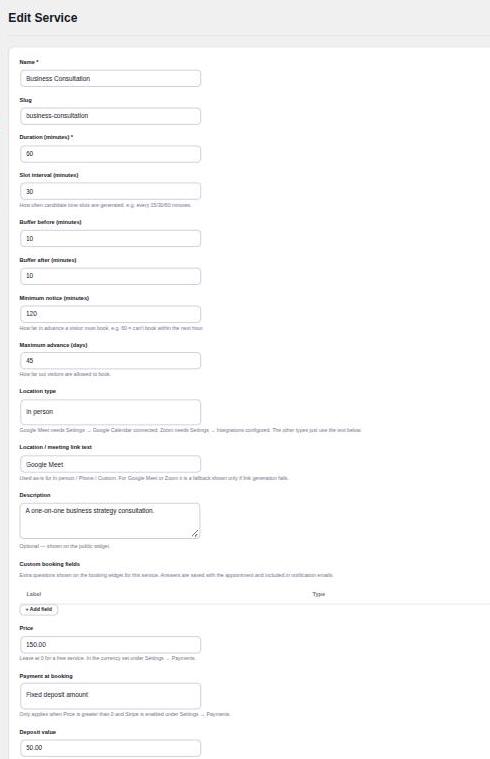
The payment option has four choices.
- None. Nothing is collected online, and the customer pays you another way.
- Full payment. The whole price is taken when they book.
- Fixed deposit. A flat amount. If you enter more than the price, it is capped at the price.
- Percentage deposit. A share of the price, from 0 to 100 per cent.
Then set Location type to Zoom or Google Meet. You can mix them: a short call on Meet, a longer paid session on Zoom, an in-person service with a deposit, all on one site. Meet needs the Google Calendar connection, and Zoom needs the Integrations tab filled in.
On our demo site, a 60-minute consultation priced at 150.00 takes a fixed deposit of 50.00 when the customer books, set to Zoom. Coupons reduce the amount charged at booking, so a coupon does nothing on a free service or one paid in person.
Should an online session take full payment or a deposit?
It depends on what a missed session costs you. Online, nobody travels, so a no-show costs you the slot and not much else. For a 30-minute call, charging in full is simple and avoids chasing a balance. For a long session or a paid consultation, a deposit gets the customer committed without a large charge up front, and you take the rest on the day.
A percentage suits services at several price points, because the deposit scales with the price. A fixed amount is easier to explain on the booking page. Whichever you choose, say it on the page before the payment step, so nobody is surprised. If deposits are mainly about no-shows, our guide to cutting no-shows covers the other two changes that help.
When does the customer get the meeting link?
After Stripe confirms the payment, not before. A paid booking is held as pending while the customer pays. When Stripe reports the payment as succeeded, the booking becomes confirmed, and only then do the confirmation email, the calendar file and any text message go out. The join link is in the email and the calendar event.
Logged-in customers also see the booking on their My Bookings screen, with a button to join the meeting, reschedule, cancel or add it to their calendar.
Behind the scenes, the plugin creates the meeting when the booking is made, so the link is ready by the time the payment clears. That detail matters in the next section.
What happens if the customer doesn’t pay?
The slot is released. A booking that stays pending for 20 minutes is cancelled automatically, so an abandoned checkout doesn’t hold the time. For a Google Meet service, cancelling also removes the calendar event the plugin created.
Zoom behaves differently, and you should know before you rely on it. Appointure creates the Zoom meeting when the booking is made but doesn’t delete it when the booking is cancelled. An unpaid booking, or a cancelled one, leaves a scheduled meeting in your Zoom account. It is harmless, since the customer never received its link, but it clutters the list. If you take a lot of bookings, clear old meetings in Zoom now and then.
One more edge case. If a customer’s payment arrives after the 20 minutes are up, the plugin does not bring the booking back, because the slot may already belong to someone else. The payment is still recorded, and it appears in the Appointments list so you can refund it.
How do refunds work for online sessions?
From the Appointments list. Open a paid booking and refund it in full or in part. This is also where you confirm, cancel, or mark a session completed or no-show.

A note on partial refunds. Appointure marks the payment as refunded once you’ve refunded part of it, and the exact amount lives in Stripe. If you need the figure for your books, check it in the Stripe Dashboard rather than the Appointments list.
Zoom or Google Meet?
Pick the one your customers already use, and remember the setup is different. Meet comes free with the Google Calendar connection, which also keeps your calendar in sync both ways, so busy times on your calendar block new bookings. Zoom needs its own app, but it gives every booking a separate scheduled meeting.
You can choose per service, so there’s no need to decide once for the whole site.
How do you test it without charging a real card?
Use Stripe’s test mode. Appointure keeps separate test and live keys, with a Test or Live switch next to them. Set the mode to Test, paste the test keys, and book a service yourself. Stripe publishes test card numbers for successful and declined payments (checked 7 October 2026), so you can run a good payment and a failed one without moving any money.
Do both. The good payment shows you the whole path: pending, confirmed, then the email with the link. The declined one shows you what a customer sees when the card fails, and whether the slot is held in the meantime. Switch the mode to Live only when you’ve seen both behave. If you change keys later, check the webhook URL in your Stripe Dashboard still points at the right site.
What doesn’t it do?
Online payment is Stripe only, so there is no PayPal. There are no recurring appointments, group classes or multiple locations in this version. Calendar sync is with Google Calendar, one Google account per site. Text reminders need a Twilio account, which you pay Twilio for directly. If one of those is a must for you, the Appointure page lists who it suits and who should look elsewhere.
Which order should you set it up in?
- Stripe first. Keys, webhook, and one test payment on a cheap service.
- One service, full detail. Price, deposit option, location, and a clear line on the booking page.
- Zoom or Meet. Add the connection, book a test slot, and check the link arrives after payment.
- Check the unhappy path. Start a booking and leave without paying, then look for the cancellation 20 minutes later.
Appointure. Appointment booking for WordPress. Customers pick a service, a staff member and a time, pay a deposit through Stripe, and get reminders by email, SMS or WhatsApp.
View the add-on