Why do customers miss appointments?
Mostly for two ordinary reasons. They forgot, because the booking was made two weeks ago and nothing reminded them. Or their plans changed, and cancelling meant finding your email, writing an apology and waiting for a reply, so they didn’t bother.
A smaller group booked without much commitment in the first place. A free slot that took ten seconds to grab is easy to abandon. Each of these has a different fix, and you need all three.
What does a missed appointment cost?
More than the fee. The slot was held, so someone else who would have come couldn’t book it. If a staff member was paid for that hour, you paid for nothing. If the slot had a buffer either side, that time is gone too. A practice that loses two 60-minute slots a week loses more than 100 hours of bookable time a year.
That’s why the fixes below are worth the small amount of friction they add.
Should you take a deposit?
For anything longer than a quick call, yes. A deposit does two jobs. It filters out bookings made on a whim, and it covers part of the cost when someone still doesn’t turn up.
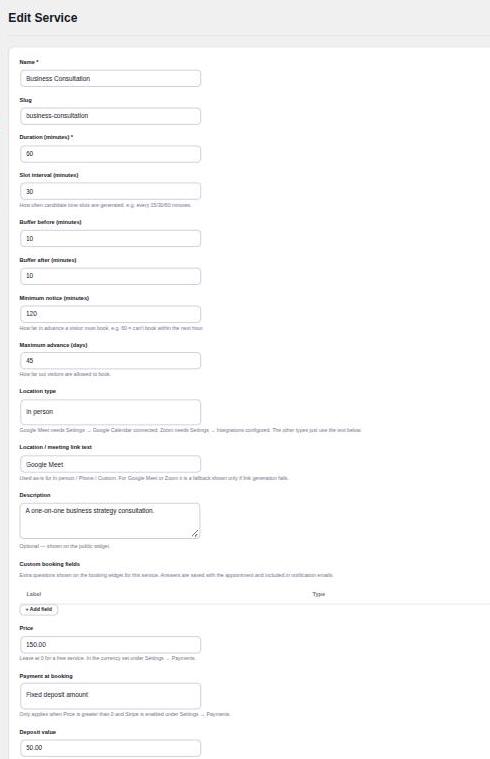
Keep it proportionate. A fixed amount works well for short sessions, and a percentage suits longer or more expensive ones. On our demo site, a 60-minute consultation priced at 150.00 takes a fixed deposit of 50.00 at booking, and the rest is paid at the appointment.
In Appointure, a deposit is set per service. Open the service, choose Fixed deposit amount or Percentage deposit under Payment at booking, and enter the value. Payment goes through Stripe, and the booking stays pending until Stripe confirms it. An unpaid booking is cancelled automatically after a timeout, so an abandoned checkout doesn’t hold the slot either.
Two things to decide before you switch it on. First, your refund rule: if someone cancels in good time, do they get the deposit back? Appointure lets you refund in full or in part from the Appointments list, so you can apply whatever rule you choose. Second, say it on the booking page, so nobody is surprised at the payment step.
When should reminders go out?
About a day before is the usual choice. It’s close enough that people remember, and far enough ahead that they can still rearrange their day, or yours, if something has come up.
Send it by text as well as email if you can. Email reminders compete with everything else in the inbox, while a text is usually read within minutes. For customers who live on WhatsApp, a WhatsApp message is often better still.
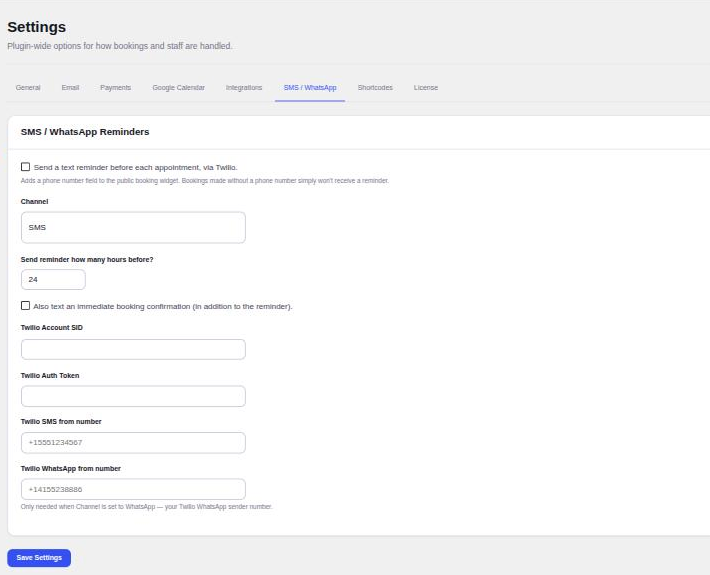
Appointure sends both. The email reminder is under Settings → General → Notifications, with its lead time in hours (24 by default). It goes once per booking, to confirmed appointments only, on an hourly check. Texts are under Settings → SMS / WhatsApp: choose the channel and how many hours before, then enter your Twilio details. Ticking text reminders adds an optional phone field to the booking form.
Two small details make reminders work better. Put the date, time and timezone in the message, not just “your appointment tomorrow”. Appointure writes customer emails in the customer’s own timezone, which matters if you book people in other countries. And attach the calendar file, so the booking lands in their own calendar with its own alerts. Appointure’s emails carry an .ics attachment for that reason.
How do you make rescheduling easier than not turning up?
Put a link in every confirmation and reminder that lets the customer move or cancel the booking themselves, without writing to you. Someone who can’t make Thursday will happily click “reschedule” and pick Friday. The same person often won’t write an email to say so.
It feels as though it would increase cancellations, and it might, a little. But a cancellation two days ahead frees the slot for someone else. A no-show doesn’t.
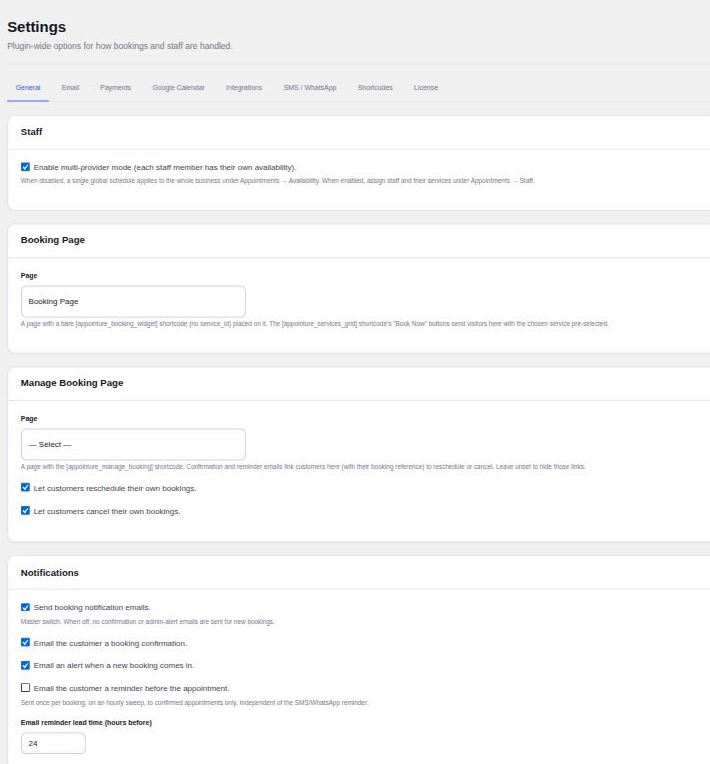
In Appointure this is the Manage Booking page. Create a page with the [appointure_manage_booking] shortcode, select it under Settings → General, and tick Let customers reschedule their own bookings, Let customers cancel their own bookings, or both. The confirmation and reminder emails then include the link, carrying the customer’s booking reference. Customers who have an account on your site can also do it from their My Bookings screen, which lists every upcoming appointment with Reschedule and Cancel buttons.
If you take deposits, decide how self-service cancellations fit your refund rule. You might allow rescheduling but not cancelling, so the deposit stays with a booking that moves rather than one that disappears.
What should the confirmation say?
Everything the customer needs to turn up without searching for it. That’s the service, the date and the time with its timezone, where it happens or the meeting link, what’s been paid and what’s still due, and how to change the booking.
The location line is the one people leave vague. “At our office” is fine for a regular client and useless for a new one. In Appointure each service has a location type (in person, phone, custom, Google Meet or Zoom) and a location text that appears in the emails and calendar invite. For Meet and Zoom services the meeting link is created for each booking and added automatically.
If you ask custom questions on the booking form, the answers go into the notification emails too. That’s useful for you as well as the customer, because you can see before the session what someone wants to talk about and prepare for it.
Does it matter how far ahead people can book?
Yes. A booking made a month ahead is more likely to be forgotten than one made for later this week, and a booking made ten minutes before the slot is more likely to be a mistake. Two settings shape this.
- Maximum advance limits how many days ahead someone can book. If most of your no-shows are bookings made weeks in advance, shorten it.
- Minimum notice stops last-minute bookings you can’t prepare for. 120 minutes means nothing can be booked in the next two hours.
In Appointure both are set per service, so a quick call can take bookings the same afternoon while a longer session needs a day’s notice. On our demo site the consultation accepts bookings up to 45 days ahead with two hours’ notice.
Should you record no-shows?
Yes, if only to know whether things are getting better. Mark each missed booking as a no-show rather than cancelling it, and you can count them later instead of guessing.
In the Appointments list, a confirmed booking can be marked completed, no-show or cancelled. Filter by status and date range to see how many no-shows you had last month, and compare it with the month after you turned reminders on.
Which change should you make first?
- Reminders. They cost nothing to the customer and catch the biggest group, the people who forgot.
- Self-service rescheduling. It turns many would-be no-shows into moved bookings.
- Deposits. Add them for longer or more valuable services once the first two are in place, and tell people about them up front.
Run each one for a few weeks before adding the next, and count no-shows as you go. That way you’ll know which change actually helped your customers, rather than relying on what helps on average.
Appointure. Appointment booking for WordPress. Customers pick a service, a staff member and a time, pay a deposit through Stripe, and get reminders by email, SMS or WhatsApp.
View the add-on