What does two-way sync actually mean?
Two things happening at once. Bookings made on your website are written into your Google Calendar, so you see them where you already look. And events that are already in your Google Calendar are read back by the website, so those times can’t be booked.
Plenty of booking tools only do the first half. That’s useful, but it leaves the gap that causes most double bookings.
Why isn’t one-way sync enough?
Because your calendar isn’t only bookings. A school pickup, a supplier meeting, a dentist’s appointment you added on your phone: none of them came through your website, so a one-way tool doesn’t know about them. It will happily offer that time to a customer.
The usual workaround is to block time by hand on the booking system as well. That works until the day you forget. Two-way sync removes the double entry.
How do you connect a WordPress booking plugin to Google Calendar?
Through Google’s own OAuth sign-in, so the plugin never sees your Google password. The setup is the same idea in most plugins. Here’s how it goes in Appointure.
- In Google Cloud Console, create an OAuth client for a web application.
- In Appointure, go to Appointments → Settings → Google Calendar and enter the Client ID and Client secret.
- Copy the Authorized redirect URI shown on that screen and add it to the OAuth client in Google Cloud Console.
- Save, then connect your Google account. The status under Google Calendar Connection should show Connected.
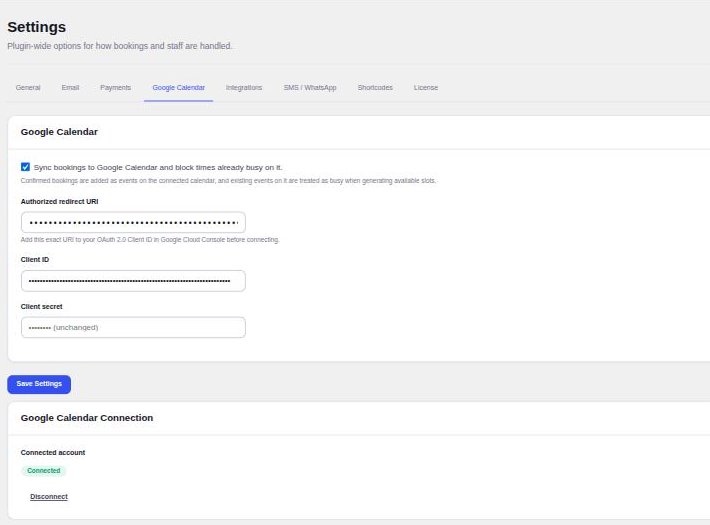
Most failed connections come from step 3. The redirect URI has to match exactly, including https and any trailing slash.
How do you check it’s working?
Test both directions before you rely on it.
- Outbound: make a test booking on your own booking page. Once it’s confirmed, it should appear on the connected Google Calendar.
- Inbound: add an event to Google Calendar during your working hours, then open the booking page for that day. The time should no longer be offered.
- Cancelling: cancel the test booking from the Appointments list. Its event should disappear from Google Calendar.
Appointure caches busy times for each day, so a new event can take a short while to block a slot.
What about bookings that need payment?
A booking that takes a Stripe payment or deposit stays pending until Stripe confirms the payment, and only confirmed bookings are added to the calendar. That’s deliberate: an abandoned checkout shouldn’t appear in your diary. If a paid booking never shows up in Google Calendar, check the booking is confirmed first, then the Stripe webhook.
Can it add Google Meet links?
Yes, and in Appointure it needs no extra setup once the calendar is connected. Set a service’s location type to Google Meet and each booking gets a Meet link, which goes into the confirmation email and the calendar event.
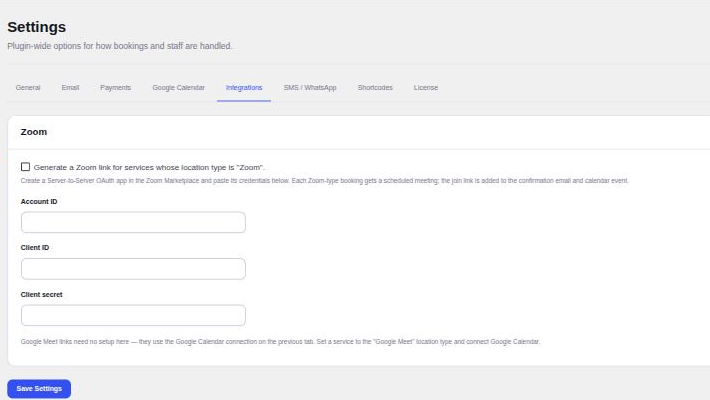
For Zoom it’s a separate connection: a Server-to-Server OAuth app from the Zoom Marketplace, entered under Settings → Integrations. Services set to Zoom then get their own scheduled meeting for each booking.
Does every staff member get their own calendar?
This is where booking plugins differ most, so check before you buy. Some connect one calendar per staff member, so each person’s own events block their own times. Others connect a single calendar for the whole site.
Appointure connects one Google account per site. That suits a business where one person takes bookings, or where a shared team calendar holds everyone’s time off. If each of your staff keeps a separate personal calendar and needs it to block their own slots, Appointure won’t do that in this version, and a plugin with per-staff calendar connections will suit you better.
Staff still get their own working hours inside Appointure, under Availability, and their own booking emails. It’s only the Google connection that’s shared.
What happens when a booking changes?
A sync is only as good as its handling of changes, so check these as well as new bookings.
- You cancel a booking from the Appointments list: Appointure deletes its Google Calendar event.
- The customer cancels from the link in their email, if you’ve allowed it: the booking is cancelled, and the time becomes bookable again.
- The customer reschedules from the same link: they pick a new time from the slots that are free, which already accounts for your Google Calendar events.
- You add a booking by hand, for a phone call: it starts as Confirmed, and the Allow booking outside available hours option lets you place it at a time the widget wouldn’t offer. Check it appears in Google Calendar the first time you do this.
Appointure reads your Google Calendar events to block times. It doesn’t treat a moved event as a moved booking, so the site stays the record of each booking and Google Calendar is where you see it. Make changes on the site.
What should go in the connected calendar?
Everything that should stop someone booking you, and nothing that shouldn’t. Because the connection is one Google account per site, the calendar you connect decides which events block times for every service.
For a sole trader that’s simple: connect your own calendar, and your personal appointments protect your working hours. For a small team, a shared calendar that holds the business’s own commitments often works better than one person’s, since a single person’s dentist’s appointment would otherwise block the whole team.
Keep events that shouldn’t block bookings, such as reminders or all-day notes, off that calendar. If a slot you expected to be free never appears, an event you’d forgotten about on the connected calendar is the usual reason.
Staff absences that aren’t in the calendar belong in Appointure itself, as a date override under Availability. That keeps one person’s day off from blocking anyone else.
Why isn’t it working?
| Symptom | Likely cause |
|---|---|
| Google shows a redirect_uri_mismatch error when you connect | The redirect URI in Google Cloud Console doesn’t exactly match the one on the settings screen. |
| Bookings don’t appear in Google Calendar | The booking isn’t confirmed yet, often because it’s waiting for payment, or the connection has dropped. Check the status shows Connected. |
| Your own events don’t block times | They’re on a different calendar or a different Google account from the connected one. |
| Meet links are missing | The service’s location type isn’t set to Google Meet, or the calendar isn’t connected. |
| Times are an hour out | The site’s timezone in WordPress doesn’t match where you are, or it’s set as a UTC offset that ignores the clock change. Choose a city instead. |
What do customers get?
Customers don’t need Google Calendar themselves. The confirmation screen has an Add to calendar link, and the confirmation email carries an .ics file. Both work with Google Calendar, Apple Calendar and Outlook, so the booking lands in whatever calendar the customer uses, with their own reminders.
What about timezones?
Set your working hours in your site’s timezone, under Settings → General in WordPress. Appointure shows visitors the slots in their own timezone and writes customer emails in it. Google Calendar shows events in yours. If times look an hour out on one side only, the site’s timezone setting is the first thing to check, especially around the clock changes.
Appointure. Appointment booking for WordPress. Customers pick a service, a staff member and a time, pay a deposit through Stripe, and get reminders by email, SMS or WhatsApp.
View the add-on