The problem
Booking by email takes four messages to agree one time. The customer asks when you’re free, you offer three slots, one has gone by the time they reply, and nobody has paid anything, so a forgotten appointment costs you the hour. Hosted booking services fix that, but they charge every month and keep your customers on someone else’s site.
How a booking works
- The customer opens your booking page, or clicks Book Now on a services grid, and picks a date. Days with free times are highlighted.
- They pick a time. Slots are shown in their own timezone, worked out from the hours you set in your site’s timezone.
- They enter their name, email and any questions you added for that service, plus a discount code if they have one.
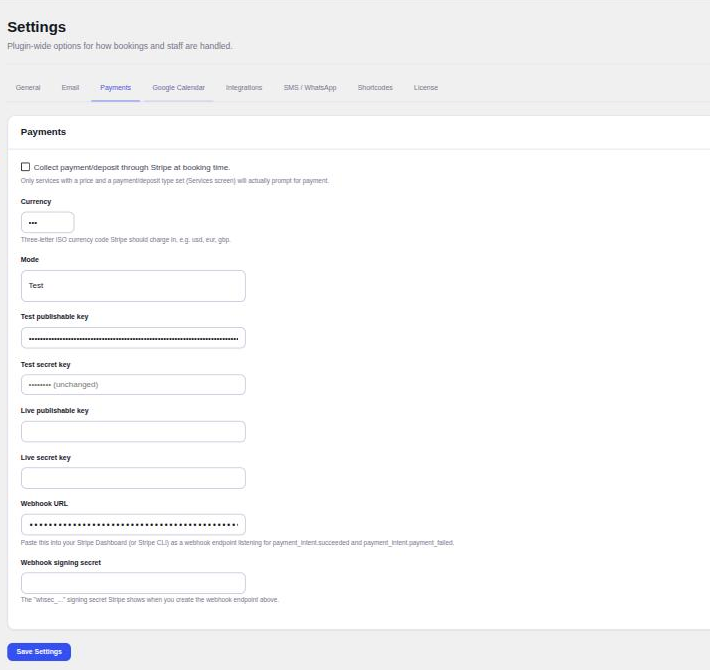
- If the service takes payment, they pay the full price or a deposit through Stripe. The booking stays pending until Stripe confirms it.
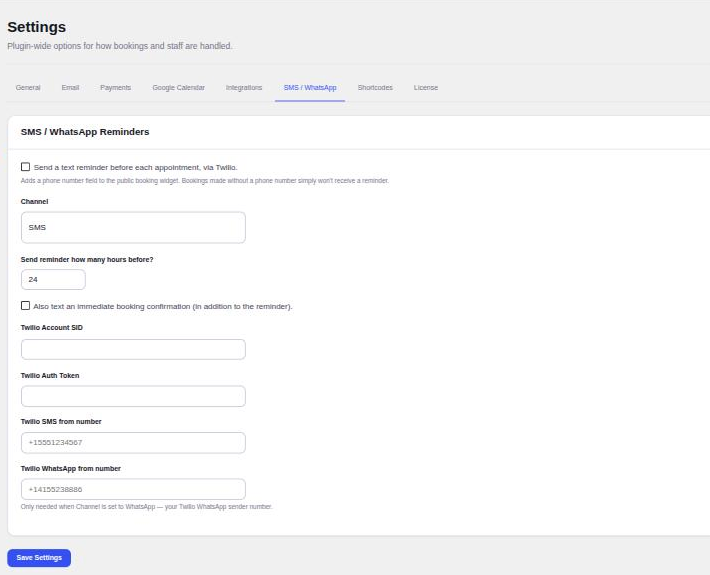
- They get a confirmation screen and email with an Add to calendar file, and later a reminder by email, SMS or WhatsApp if you turn reminders on.
Services, staff and hours
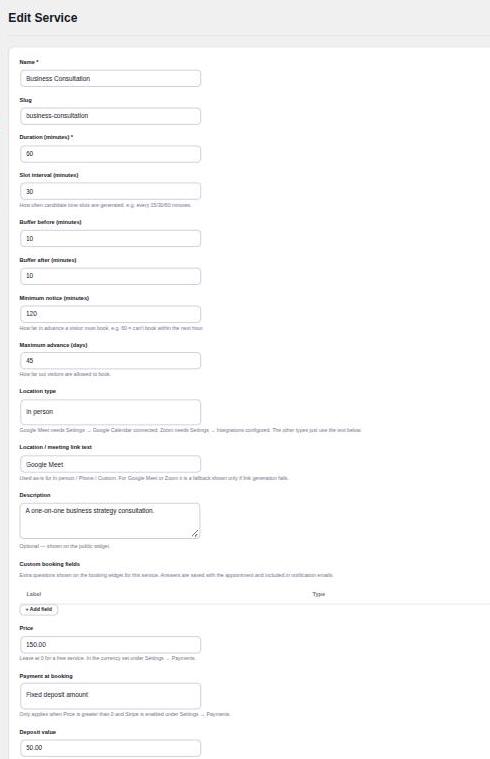
Each service has its own length, how often start times are offered, buffers before and after, minimum notice and how far ahead people can book. A 60-minute consultation can start every 30 minutes with 10 minutes kept free on either side.
With multi-provider mode on, each staff member gets their own weekly hours and the services they take. When a service has two or more staff, customers can choose a person or leave it on Any available staff, and Appointure books whoever is free at that time with the fewest upcoming bookings. Date overrides close a day for a holiday or open one for a Saturday session without touching the weekly hours.
Running the diary
Every booking lands in the Appointments screen, as a filterable list and as a month calendar coloured by service. From the list you confirm, cancel, mark completed or no-show, and refund a paid booking in full or in part. Phone bookings go in through Add Appointment, which can override your hours when you need it to.
Customers can reschedule or cancel from a link in their emails if you allow it, so changes don’t have to come through you. Customers with an account on your site also get a My Bookings screen listing their upcoming and past appointments, with buttons to join the meeting, reschedule, cancel or add the booking to their calendar. Bookings made before they registered show up too, matched by email.
Calendars, meetings and reminders
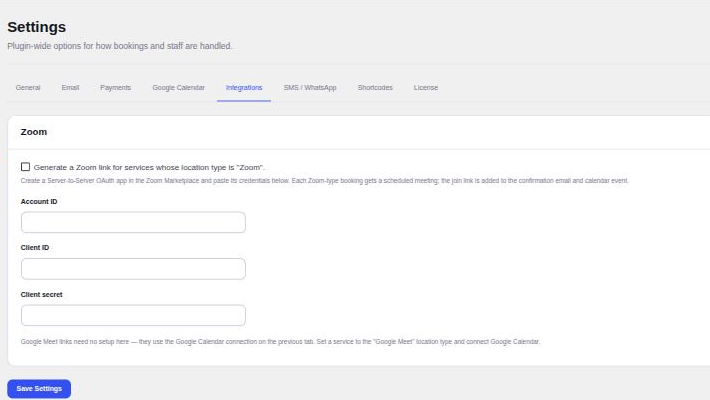
Connect one Google account and confirmed bookings appear on its calendar, while events already on it block those times for new bookings. Services set to Google Meet get a Meet link from the same connection. Services set to Zoom get their own scheduled Zoom meeting. Reminder texts go through your own Twilio account, by SMS or WhatsApp.
Multisite
Appointure runs on WordPress multisite with separate data for each subsite. One licence covers the network: each subsite running the plugin counts as one site against the licence, and activations follow automatically as subsites are added, switched on or off, or deleted. Only a network admin can activate or deactivate the licence.
For developers
A REST API under appointure/v1 serves services, availability and slots, takes bookings, validates coupons, reschedules and cancels a booking by its reference and returns calendar files. 29 documented actions and filters cover the booking lifecycle, the slot engine, emails, texts, payments and templates, and the front-end templates can be overridden from your theme.
What it doesn’t do
- There are no recurring appointments, group classes or multiple locations in this version.
- Online payment is Stripe only. Services can also be set to pay in person.
- Calendar sync is with Google Calendar, and one Google account is connected per site, not one per staff member.
- Texts need a Twilio account, which you pay Twilio for directly.