Woo AI Product Recommender adds a chat assistant to your WooCommerce store. It answers product questions from a live lookup of your catalogue, answers policy questions only from text you write, and hands customers to a person when it can’t help. It runs on the AI provider you choose: DeepSeek, ChatGPT (OpenAI), Qwen (Alibaba Cloud) or Grok (xAI), using your own API key.
Before you start
- WooCommerce installed and active, and PHP 8.0 or newer.
- An API key for one of the four providers. Create an account with the provider, add credit and generate a key: DeepSeek at platform.deepseek.com, OpenAI at platform.openai.com, Qwen in Alibaba Cloud Model Studio, Grok at console.x.ai. The provider bills usage to your account.
All settings are on one screen: WooCommerce → AI Product Recommender, split into tabs. Nothing appears on your storefront until an API key is saved.
Quick setup
- AI Provider tab: choose a provider, paste its key and click Save Settings.
- Knowledge Base tab: paste your shipping policy, a short FAQ and your returns policy.
- Appearance tab: set the header title, welcome message and accent colour.
- Features tab: check the switches and fill in at least one hand-off channel.
- Product Learning tab: click Learn Products Now and wait for it to finish.
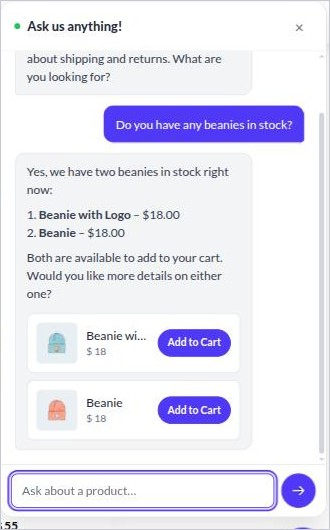
- Open your shop, click the chat button in the bottom-right corner and ask something like “Do you have any beanies in stock?”
Save Settings saves the AI Provider, Knowledge Base, Appearance, Features and Custom CSS tabs together, whichever one you’re looking at. Analytics, Product Learning and License have their own buttons.
AI Provider

- Provider: DeepSeek, ChatGPT (OpenAI), Qwen (Alibaba Cloud) or Grok (xAI). Each provider keeps its own key and model, so you can switch later without re-entering keys, and the product catalogue and knowledge base work with every provider.
- API key: stored in the database and never shown again. Leave the field blank when re-saving to keep the current key.
- Model: leave it blank for the provider’s default (deepseek-chat, gpt-5-mini, qwen-plus or grok-4). A model you enter must support tool (function) calling.
- Region (Qwen only): International (Singapore) or China (Beijing). A Qwen key only works in the region it was created in.
To keep the key out of the database, define the provider’s constant in wp-config.php above “That’s all, stop editing”, for example define( 'WAPR_OPENAI_API_KEY', 'your-key' );. The constants are WAPR_DEEP_SEEK_API_KEY, WAPR_OPENAI_API_KEY, WAPR_QWEN_API_KEY and WAPR_GROK_API_KEY. The field then locks and says why.
Knowledge Base

Three boxes: shipping policy, FAQ and returns policy. They’re the only source the assistant may use for those topics. If a box is empty, the assistant says it can’t answer that and offers a person. Write them the way you’d explain things to a customer, and update them whenever a policy changes.
Appearance

- Chat header title and Welcome message.
- Accent colour: used for the header, launcher and the customer’s messages. Hover shades and the readable text colour on top are worked out for you.
- Text and background colours: leave blank to follow the visitor’s light or dark mode.
- Font: pick one, or use your theme’s font so the chat blends in. Text size small, medium or large.

- Chat widget icon: replaces the chat bubble on the launcher. A square image works best.
- Automatically open the chat when a visitor loads the page.
- Reset to default styling restores every field on this tab (nothing changes until you save).
Features

| Switch | What it does |
|---|---|
| Show product cards with an Add to Cart button in chat | Products appear as cards with image, price and Add to Cart. Variable, grouped and external products get View Product instead. |
| Let customers check their order status in chat | The assistant asks for the order number and billing email, then reports status, total and items. No login needed. |
| Suggest a related product after Add to Cart | One to three suggestions from the product’s cross-sells and upsells, or WooCommerce’s related products. This doesn’t call the AI provider. |
| Proactively open the chat when a visitor seems about to leave | Opens once with your nudge message when the mouse heads for the browser tabs, or after a delay of 5 to 300 seconds on touch devices. |

Turn on Let the assistant connect customers with a human and fill in at least one channel: a support email, a WhatsApp number (any format) or a contact-page or live-chat URL. The assistant offers them when a customer asks for a person, or when it can’t help. Blank channels aren’t shown.
Custom CSS

Plain CSS here loads after the built-in styles and the Appearance settings, so it can override both. Write rules only, without style tags.
Analytics

- Conversations started.
- Add-to-carts from chat: clicks on Add to Cart in a chat card.
- Conversion rate and revenue attributed: an order only counts if it followed an Add to Cart from a chat card, it counts once, and it has to be paid.
Reset Stats zeroes everything and restarts the date. It can’t be undone.
Product Learning

The assistant indexes each product’s name, description, categories, tags and attributes so it can match questions to products. New and edited products are learned when you save them, and deleted ones are removed. Run Learn Products Now after first setup, after a bulk import, or if the counts look wrong.
Licence

Paste your key and click Activate. The licence only controls updates; every feature works without it. The site re-checks once a day, and Deactivate frees the key for another site.
What shoppers see

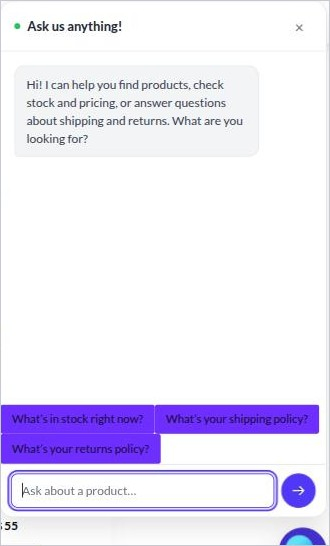
The panel opens with your welcome message and three quick replies: what’s in stock, your shipping policy and your returns policy.
Each visitor can send 20 messages every five minutes. Past that, they’re asked to wait a moment.
How it stays accurate
On every turn the assistant is told to:
- look up price, stock and availability before answering, and answer only from what the lookup returns
- answer shipping, FAQ and returns questions only from your Knowledge Base
- never invent a discount or promotion
- suggest an in-stock alternative and offer a person when there’s no match
These are instructions to an AI model, so an unusual question can still be misread. Keep the human hand-off on.
Costs
Every customer message is one API call to your provider, on your account. Related-product suggestions and product learning don’t call the AI provider.
Troubleshooting
| Problem | What to check |
|---|---|
| The chat button doesn’t appear | An API key is saved, the plugin and WooCommerce are active, and page or CDN caches are cleared. The theme must call wp_footer(). |
| Every reply is “Sorry, something went wrong” | The API key is wrong, the provider account has no credit, or the model name isn’t one the provider recognises (clear the Model field to use the default). For Qwen, check the region matches the key. |
| It can’t answer shipping or returns questions | The matching Knowledge Base box is empty. |
| Products are never recommended | Run Learn Products Now, and check the products are published and in stock. |
| “View Product” instead of Add to Cart | Expected for variable, grouped and external products. |
| Order lookup always fails | The order number and billing email must match the same order exactly, and order lookup must be switched on. |
| “Too many messages” | The visitor hit 20 messages in five minutes. Wait a few minutes. |
Deactivating and deleting
Deactivating keeps your settings, analytics and product index. Deleting the plugin removes its settings and the product index. Orders and products aren’t touched.